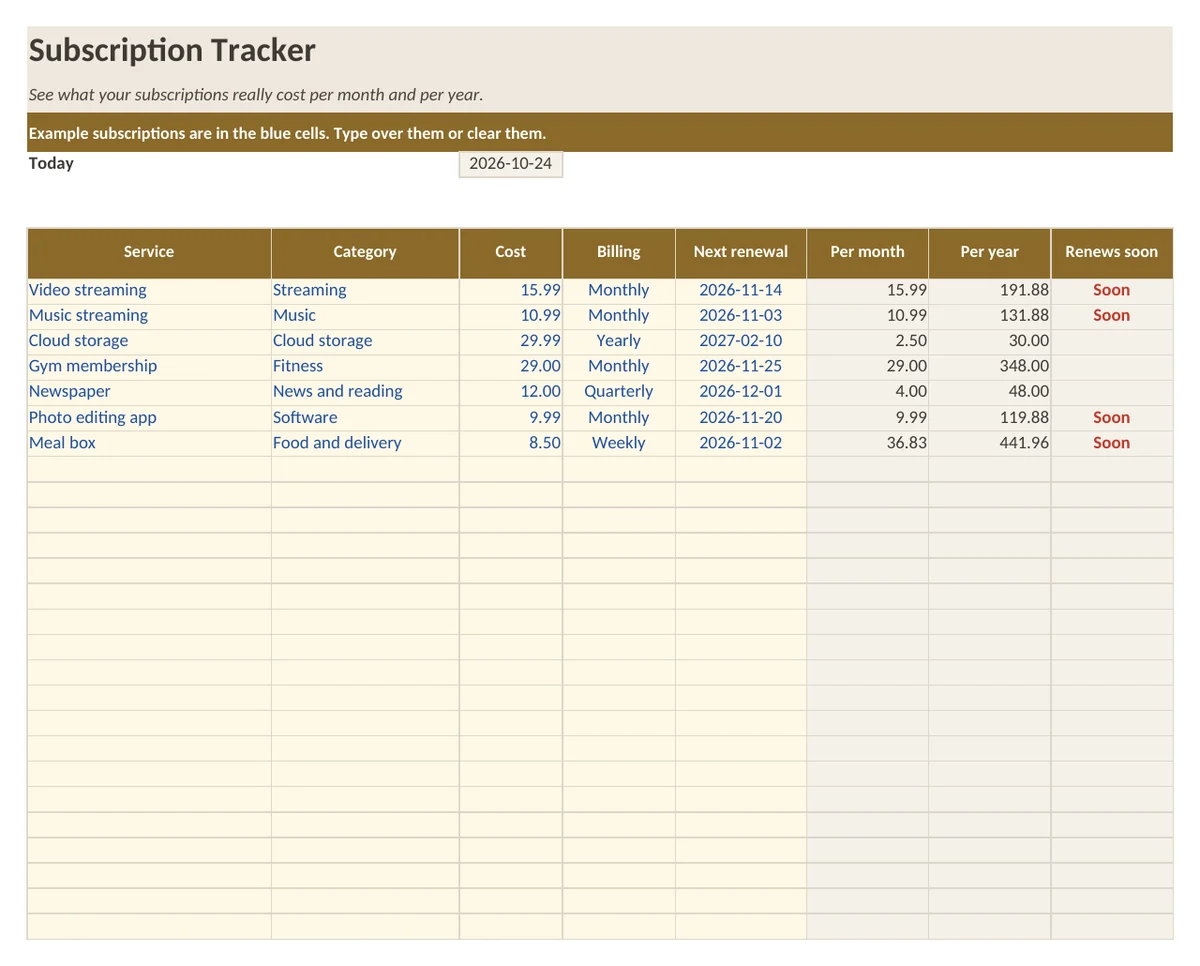
What is in the workbook
- Sheet Subscriptions: 37 lines with cost, billing cycle and next renewal date
- Cost per month, cost per year and a Soon flag for renewals within 30 days, calculated with formulas
- Sheet Summary: cost per category, the most expensive subscription and the average
- Sheet How to use with five short steps
What is in the print version (PDF)
- Printable subscription list with 22 lines and a totals row
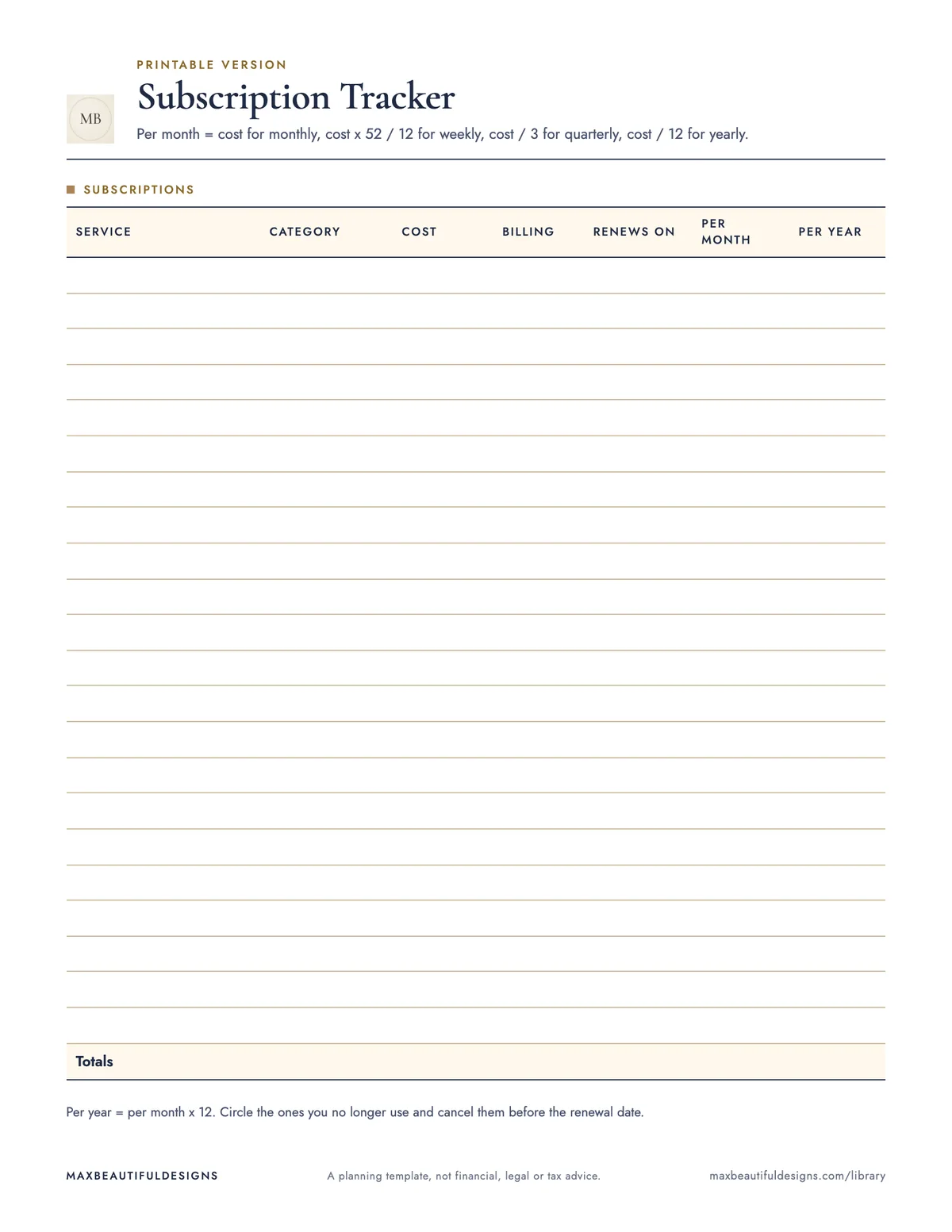
How to use this spreadsheet
Open the workbook in your spreadsheet application. On the Subscriptions sheet, fill in each row with one subscription: the name, cost per billing cycle, billing cycle (weekly, monthly, quarterly, or yearly), and the next renewal date. The formulas will automatically calculate the cost per month and per year, and flag any renewal due within 30 days with a Soon indicator. On the Summary sheet, you will see costs grouped by category, the most expensive subscription, and the average cost. Use the How to Use sheet for five short steps. The printable PDF has 22 lines and a totals row for a quick paper reference. This tracker helps you see exactly what you spend on subscriptions each month and year, so you can decide which to keep or cancel.
Tips
- Update the renewal dates each time you pay a bill to keep the Soon flag accurate.
- Add new subscriptions as you sign up, and delete rows for canceled ones to keep the list current.
- Print a fresh PDF each month to review your subscriptions without opening the workbook.
Questions and answers
Does this file work in Google Sheets?
Yes. In Google Sheets, go to File, Import, Upload, and select the .xlsx file. The formulas will work as designed.
Do I need to sign up or enter my email to download it?
No. The file is free and requires no sign up or email address.
Can I add more than 37 subscription lines?
The workbook has 37 lines on the Subscriptions sheet. You can insert additional rows, but the formulas and Summary sheet may need adjustment.
A planning template, not financial, legal or tax advice.